
How to replace Edge as the default browser in Windows — and why you shouldn’t
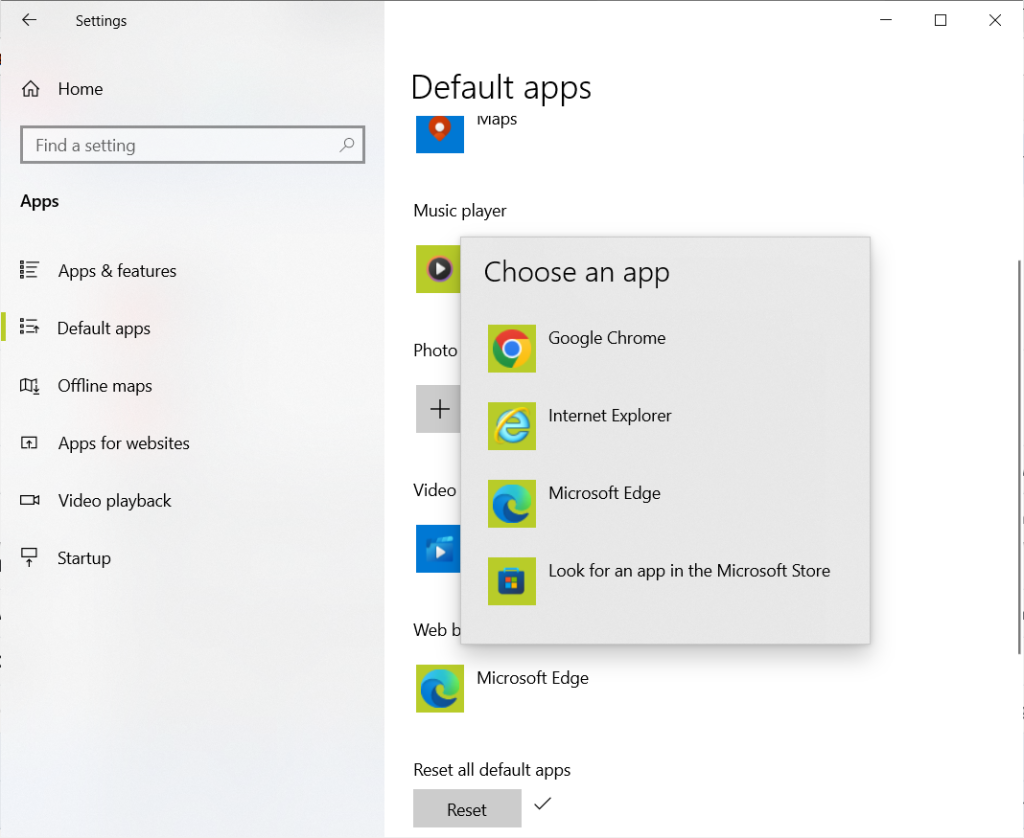
Microsoft has been struggling to get people to use its Edge browser for years. Even though the company made Edge the default browser in Windows 10, users left in droves, most of them flocking to Google Chrome — and with good reason. The original version of Edge was underpowered, had difficult-to-use features, and offered very few extensions compared to Chrome and Firefox. But in January 2020, Microsoft launched a new version of Edge that’s based on the same technologies that drive Chrome. (The new Edge is the only one that’s ever been offered in Windows 11.) The Chromium-based Edge is a much better browser, and there are compelling reasons to use it. But you might still prefer to use Chrome, Firefox, or one of the many other browsers out there. Even if you’ve set up another browser to be your default in the past, it might have been changed since then. When there’s a major Windows upgrade, the installation software recommends switching to Edge, and you might have inadvertently made the switch. Whatever the reason, if Edge is your default browser in Windows 10 or 11, it’s easy to switch to the browser of your choice. As I’ll show you, it only takes a few minutes. The instructions in this article assume you’re using either Windows 10 version 22H2 or Windows 11 version 25H2. If you’re using an earlier version, the screens you see may vary somewhat from what you see here. Why you might want to stick with Edge It’s probably worth at least trying out Edge. The browser offers a clean design with intuitive features. One of the biggest drawbacks to the old Edge was its paltry selection of browser extensions, but because the new Edge uses the same rendering engine as Chrome, it can run Chrome extensions, which number in the thousands. Edge also has its own library of extensions. In my tests, Edge feels faster than Chrome and uses less RAM. It has some interesting features worth trying, such as the ability to launch a website as if it’s an app. And if you prefer Microsoft’s Copilot generative AI chatbot to Chrome’s Gemini, Edge is the logical choice. All that said, you might not be interested in trying out Edge, or you might try it and decide you still prefer Chrome, Firefox, or another browser. You may, for example, like Firefox’s ability to alert you when a website covertly uses your computer’s processor to mine cryptocurrency in the background, without your knowledge. Or you might like Chrome’s Gemini more than you like Edge’s Copilot. If you want to use another browser as your default, here’s what to do. How to designate another browser as your default The first thing you need to do to switch to another browser as your default is to install the other browser on your system. What you do next depends on whether you use Windows 10 or Windows 11. Changing the default browser in Windows 10 1. If you’re using Windows 10, click the Start button and then click the Settings icon that appears on the left-hand side of the screen. (It looks like a little gear.) You can alternatively type settings into the search box and click the Settings result that appears at the top of the screen. 2. In the Settings app, select Apps > Default apps. The “Default apps” screen appears. It shows the default apps for email, maps, playing music and videos, viewing photos, and more. 3. To change the default browser, you’ll have to scroll down toward the bottom of your screen. There you’ll see Microsoft Edge under the “Web browser” listing. 4. Click the Microsoft Edge icon and you’ll see a pop-up with a list of your installed browsers. Select a different browser to be your default. Preston Gralla / Foundry Side note: The pop-up also has a “Look for an app in the Microsoft Store” option, but if you click it, you may not find a popular browser you want to install. Clicking it launches a search of the Windows App Store for the term “http.” When I tried it for this article, the only familiar browsers it found were Firefox, Opera, and Edge. Otherwise, there was a motley collection of apps, from file downloaders to an app that dims your Windows background to make it easier to view videos. There are also some little-known browsers listed, such as C Lite Browser and Flash Browser. Try them out if you like, but keep in mind that they’re Windows Store apps, and as a general rule, Windows Store apps are underpowered compared to desktop apps like Chrome, Firefox, and Opera. 5. Click the browser that you’d like to be your default browser. No need to restart; your work is done. Changing the default browser in Windows 11 1. In Windows 11, after you’ve installed an alternate browser, click the Start button and then click the Settings icon. 2. In Settings, select Apps > Default apps, then scroll to the browser you want to make your default — for example, Google Chrome. 3. Click the arrow next to it, and at the top of the screen that appears, click Set default. chrome screen in windows 11 with set default button highlighted" class="wp-image-4203104" width="899" height="465" sizes="auto, (max-width: 899px) 100vw, 899px">Making Google Chrome your default browser in Windows 11. Preston Gralla / Foundry 4. A checkmark then appears next to “Set default.” To change the default back to Edge or another browser, scroll to the browser you want to be the default and click Set default. When you do this, some but not all of the file types associated with Edge will become associated with Chrome instead. Below, I’ll show you how to have more than just those file types be opened by your alternate browser. Some links will still open in Edge Once you switch the default browser to something other than Edge, clicking most web links in emails, documents, and most other apps will open them in your new default browser. However, some links associated with web browsing will likely still open in Edge — for example, PDF files, some graphics files such as .svg, mailto links, and more. You can hunt down each of those file types and links and change them individually to your new default browser, but it’s going to take you time. Here’s how to do it. Changing link defaults in Windows 10 1. In Windows 10, go to Settings > Apps > Default apps > Choose default apps by file type. 2. On the screen that appears, scroll through all the file types and look for those still associated with Microsoft Edge — for example, .pdf. width="634" height="389" sizes="auto, (max-width: 634px) 100vw, 634px">Microsoft Edge is still associated with the .pdf file type on this screen. Preston Gralla / Foundry 3. Click the Microsoft Edge icon to the right of the file type, and from the screen that appears, select your default browser — for example, Google Chrome. 4. You can alternatively choose to have an app from the Microsoft Store run the file. To do it, click Look for an app in the Microsoft Store and follow the directions. 5. After you’ve done that, go to Settings > Apps > Default apps > Choose default apps by protocol and follow the same steps. Changing link defaults in Windows 11 1. In Windows 11, go to Settings > Apps > Default apps and click your default browser — for example, Google Chrome. 2. Scroll through all the file types and protocols, and click any still associated with Microsoft Edge — for example, .pdf. Change the file types associated with Edge in Windows 11. Preston Gralla / Foundry 3. On the pop-up screen that appears, select the browser you want to handle the file type (for example, Google Chrome), then click Set Default. Note that you don’t have to choose your default browser for every file type — you can choose another app, such as a PDF reader for .pdf files. Even after all that, you may still find that clicking links in the Windows interface itself — such as in the Start menu, Windows Search results, or widgets — will open them in Edge. Microsoft changed this behavior in Windows 11 so that all links open in the user-set default browser, but only in Europe. There’s hope for the rest of us, though: sleuths at Windows Latest discovered flags in early preview software indicating that browser choice may be coming to the Start menu and taskbar. Time will tell. This story was originally launched in September 2017 and most recently updated in August 2026. Related reading: 12 top productivity tips for Microsoft Edge Chromium explained: How the open-source engine drives today’s browsers Microsoft Copilot tips: 9 ways to use Copilot right
This is a summary aggregated from Computerworld. Read the complete article on the original site:
Read full article at Computerworld


