The ultimate Chrome keyboard shortcut upgrade
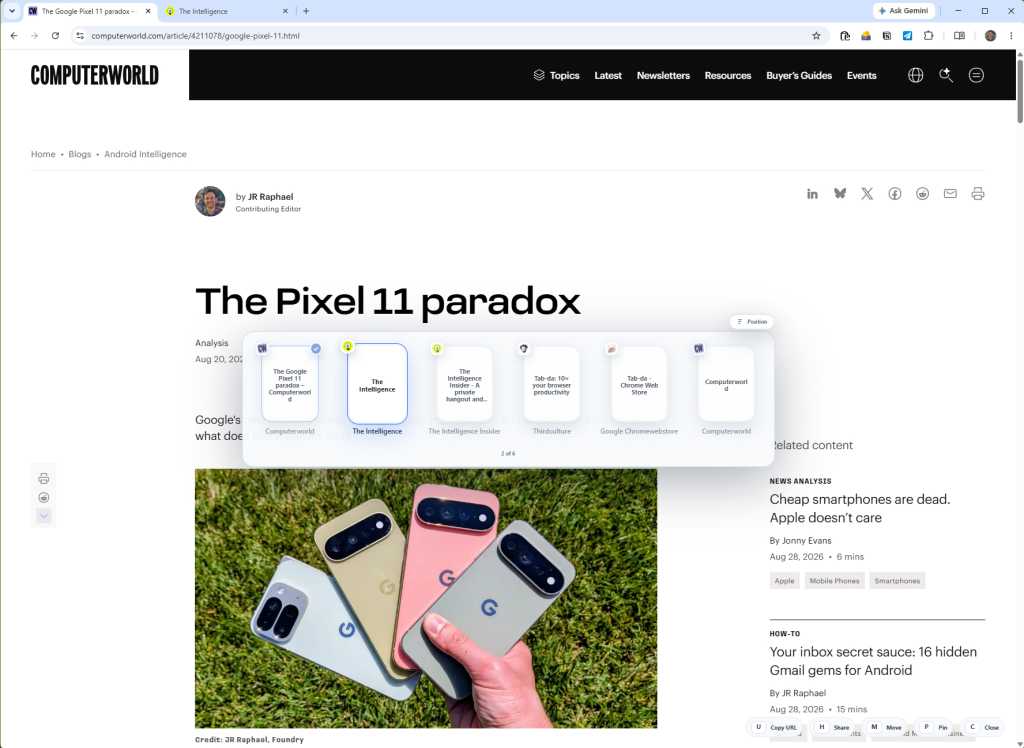
When it comes to productivity these days, we’re got two competing concepts to consider: Automate everything with AI and let an unreliable, error-prone bot do work on your behalf (thus likely spending even more time reviewing — and correcting — its mistakes) Find intelligent systems for increasing your own efficiency while maintaining complete control over what you’re doing The first path clearly gets the most attention as of late. (And, to be fair, there are ways that AI can genuinely be useful, especially when it’s used as a tool for specific limited purposes as opposed to an omnipresent answer for everything.) But arming yourself with good old-fashioned efficiency-enhancers is an increasingly underrated and overlooked option for giving yourself a powerful productivity advantage — in a way that actually makes a difference, without any awkward compromises. That’s particularly true in the domain of the desktop browser, where so many of us do so much of our work in 2026. The browser in many ways has become our de facto workday operating system — no matter what kind of computer we’re using at any given moment — and yet, it’s nowhere near the level of an actual operating system when it comes to the shortcuts and work management tools it offers. At this point, the company behind the world’s most widely used browser is seemingly more interested in finding new places to cram Gemini into our lives than developing genuinely useful systems for more efficient browser work. But a third-party developer we’ve talked about before in these quarters is stepping up to fill that void and give Chrome the keyboard-centric kick-in-the-keister it needs to become an optimal productivity backdrop — with our own fleshly fingers guiding the way. It’s a brand new browser extension that’ll work in any Chromium-based browser and completely change how you think about getting around your tabs and getting stuff accomplished. I’ve had the opportunity to test it out and live with it for several weeks now. Let me show you how it works and what it could do for you. [Get level-headed knowledge in your inbox with my free Android Intelligence newsletter. One smart new thing to try every Friday!] Meet your new Chrome command center My fellow keyboard warrior, allow me to introduce you to a little something called Tab-da. Tab-da is an extension for Chrome — or, again, any other browser based on the same underlying code, including Vivaldi, Edge, Brave, and Opera — that adds all sorts of keyboard-oriented productivity-minded power-ups into your browser environment. There’s so much to it, in fact, that the biggest challenge is wrapping your head around all of the possibilities it presents and developing the muscle memory to get yourself in the habit of using actually ’em. The best way to get going is to start small — with a focus on a few core Tab-da features: 1. The tab switcher Tab-da’s centerpiece, so to speak, is the simple yet robust OS-like tab switcher it adds into the browser arena. Just like you how you hit Alt-Tab to move among programs in Windows, you hit Ctrl, Shift, and the left or right arrow key with Tab-da in your browser — and, well, ta-da: Tab-da’s on-demand tab switcher in action — a faster, easier way to get where you want to go in your browser.JR Raphael, Foundry You can zip between all of your open browser tabs as if they were apps or processes on your computer — ’cause for all intents and purposes when working these days, they really are. And now, at long last, they can act like it. 2. The tab command bar Perhaps the most powerful part of Tab-da is the all-purpose launcher it adds into your browser for almost any action imaginable. No matter what else you’re doing at any given moment, with Tab-da installed, you can hit Ctrl, Shift, and the spacebar together to summon a command bar that’s reminiscent of the Ctrl-K (or ⌘-K) option in many desktop apps and just overflowing with productivity potential. Tab-da’s command bar is the keyboard shortcut command center Chrome’s been missing.JR Raphael, Foundry From the prompt, you can start typing the name of any website or web app you’ve got open to find and jump to it quickly — or just use the on-screen numbers to move instantly to any site you see. You can also tap into a handful of handy keyboard shortcuts to zoom in specifically to other browser-based areas: Alt-O will pivot the command bar to showing and letting you search through tabs open within the same browser on other devices, like your phone. Alt-B will allow you to browse or search through your saved bookmarks. Alt-H will take you to your cross-device browsing history. Alt-C shows you recently closed tabs. Alt-D empowers you to see and search through your downloads. And Alt-T opens an action-packed actions menu where you can move a tab, pin it, duplicate it, copy its URL, or share it all right then and there — all without ever lifting your fingers off your keyboard. Actions in the command bar are a convenient way to do more than just moving between tabs.JR Raphael, Foundry And those are just the default built-in shortcuts. 3. Custom keyboard shortcuts The part of Tab-da I might appreciate the most is the framework it gives you for creating your own custom keyboard shortcuts for browser-based actions both simple and complex. Within that same command bar we were just going over, you can set up quick keyboard shortcuts for any sites you find yourself opening often — then get to them simply by hitting Ctrl-Alt-space and entering whatever shortcut you assign them. Any sites or combination of sites can be kept a couple quick keystrokes away with Tab-da’s custom shortcuts system.JR Raphael, Foundry What’s especially cool is that you can also set up multiple sites to open together in this same way — if, for instance, your workflow involves opening a specific series of four sites together (say, Google Docs, WordPress, Trello, and Notion) to work on one particular task. Then you can always get to that work mode with a few quick keystrokes and no manual tab-by-tab opening. Your Chrome keyboard control adventure Tab-da has tons of other time-savers that you’ll keep discovering the longer you use it, but those three areas are the perfect place to start — and the perfect way to understand what the extension is ultimately all about and how it aims to help you. Oh, and as for the developer? As I alluded to at the start of this story, he’s someone you may know if you’ve followed my suggestions around Android for long. His name is Bardi Golriz, and he’s the same guy behind both the Ruff Reminders app I recommended earlier this year and the Ruff Writing widget I’ve written about before. Like Golriz’s other apps, Tab-da doesn’t contain any kind of tracking or other disconcerting privacy asterisks. All of your browsing data remains entirely on your device, with no syncing, storage, or sharing of any sort. The extension is free for an unlimited seven-day trial — with no payment details or personal info required. After that, if you want to keep using it, it’ll run you a whopping 99 cents a month or 20 bucks for a lifetime license, which is a small price to pay for all the seconds it saves you (and, of course, a price that lets independent developers like Golriz continue doing the work they do). Just remember: Start small. Let yourself get in the habit of using one feature and one keyboard shortcut at a time, then add one more into the mix from there as each element slowly becomes second nature. Before long, you’ll barely remember what working in a browser was like without a tool like this in the picture — and you almost certainly won’t want to go back. Discover oodles of useful tech tricks with my free Android Intelligence newsletter — one new thing to try every Friday, straight from me to ye.
This is a summary aggregated from Computerworld. Read the complete article on the original site:
Read full article at Computerworld